Getting startedPrimeros pasos
Everything you need to set up your first alarm and wake up with Wakecraft. It takes a couple of minutes.
Todo lo que necesitas para programar tu primera alarma y despertar con Wakecraft. Te llevará un par de minutos.
You need an iPhone or iPad with iOS 26.1 or later.
Necesitas un iPhone o un iPad con iOS 26.1 o posterior.
- 1 · Welcome
- 2 · Create an alarm
- 3 · Pick a challenge
- 4 · When it rings
- 5 · Emergency exit
- 6 · Routines
- 7 · Siri and Shortcuts
- 8 · Widgets and Control Center
- 9 · Premium and Settings
- 10 · Tips
- 1 · Bienvenida
- 2 · Crear una alarma
- 3 · Elegir un reto
- 4 · Cuando suena
- 5 · Salida de emergencia
- 6 · Rutinas
- 7 · Siri y Atajos
- 8 · Widgets y Centro de control
- 9 · Premium y ajustes
- 10 · Consejos
Welcome, and allow alarms
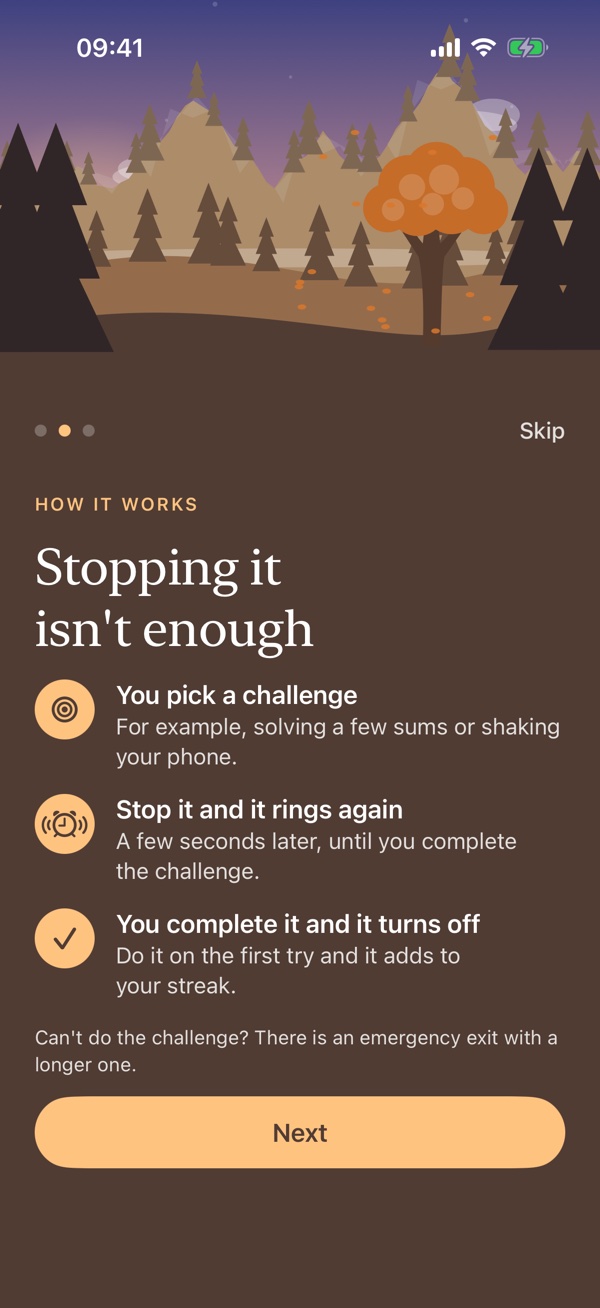
The first time you open Wakecraft, three short screens explain what the app is, how it works and why it needs a permission. Tap Next (or Skip to jump to the end), then Allow alarms and accept the iOS prompt.
Wakecraft uses the system's alarms, so they ring with the app closed, with your iPhone on silent and during any Focus.
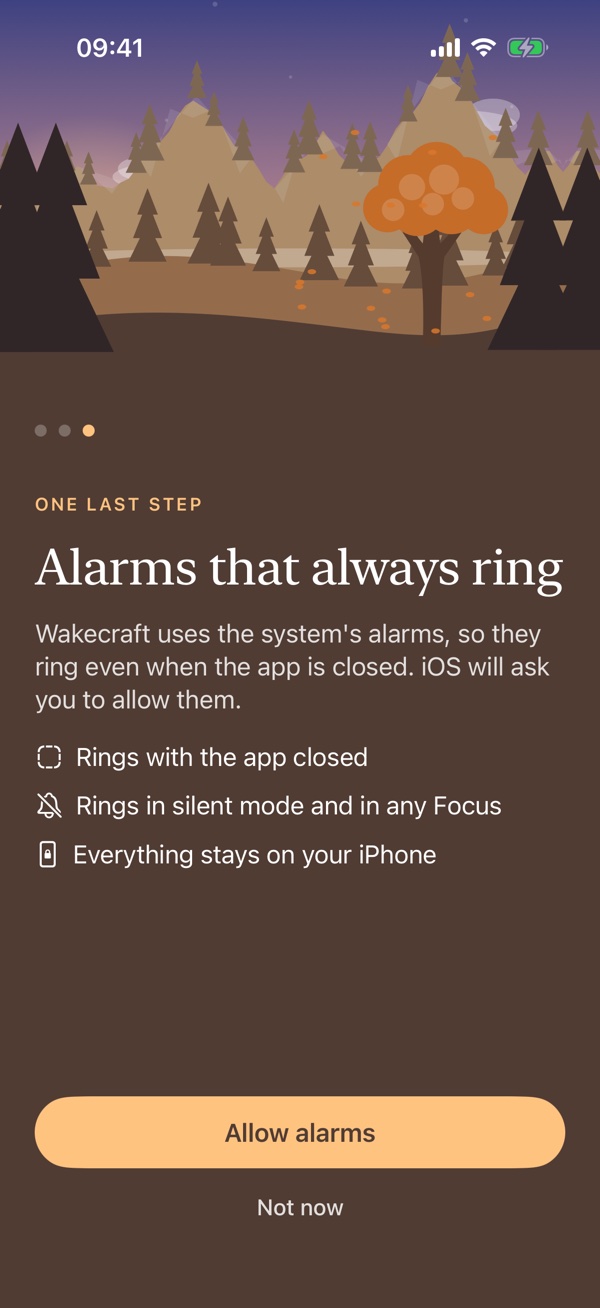
If you tap Not now, or said no by mistake, the permission screen waits for you on the alarm list: tap Open Settings there and turn alarms on for Wakecraft. Without that permission your alarms will not ring.
Bienvenida y permiso de alarmas
La primera vez que abres Wakecraft, tres pantallas breves explican qué es la app, cómo funciona y por qué necesita un permiso. Toca Siguiente (o Saltar para ir al final), después Permitir alarmas y acepta el aviso de iOS.
Wakecraft usa las alarmas del sistema, así que suenan con la app cerrada, con el iPhone en silencio y durante cualquier modo de concentración.
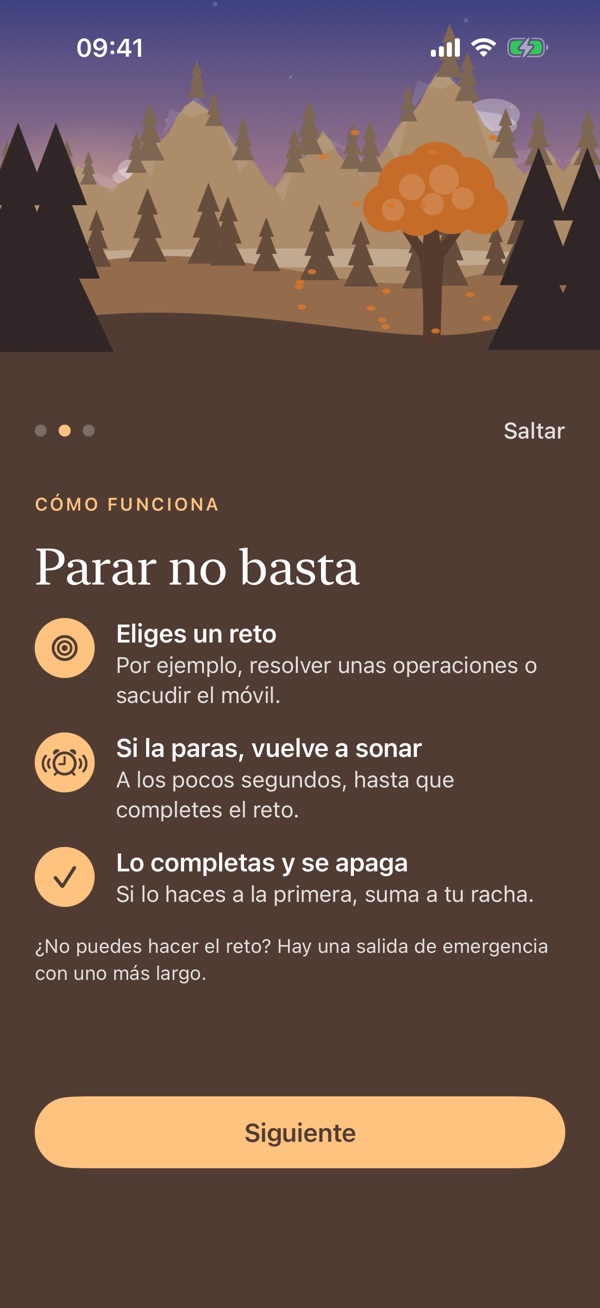
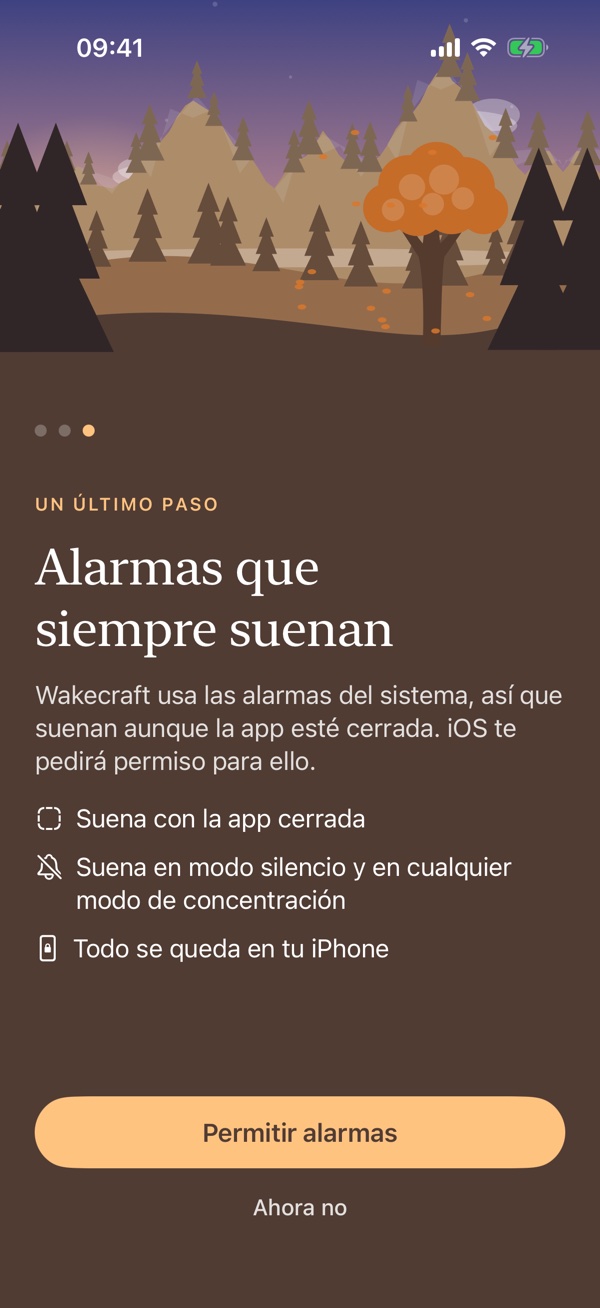
Si tocas Ahora no, o dijiste que no por error, la pantalla de permiso te espera en la lista de alarmas: toca Abrir Ajustes allí y activa las alarmas para Wakecraft. Sin ese permiso tus alarmas no sonarán.
Create your first alarm
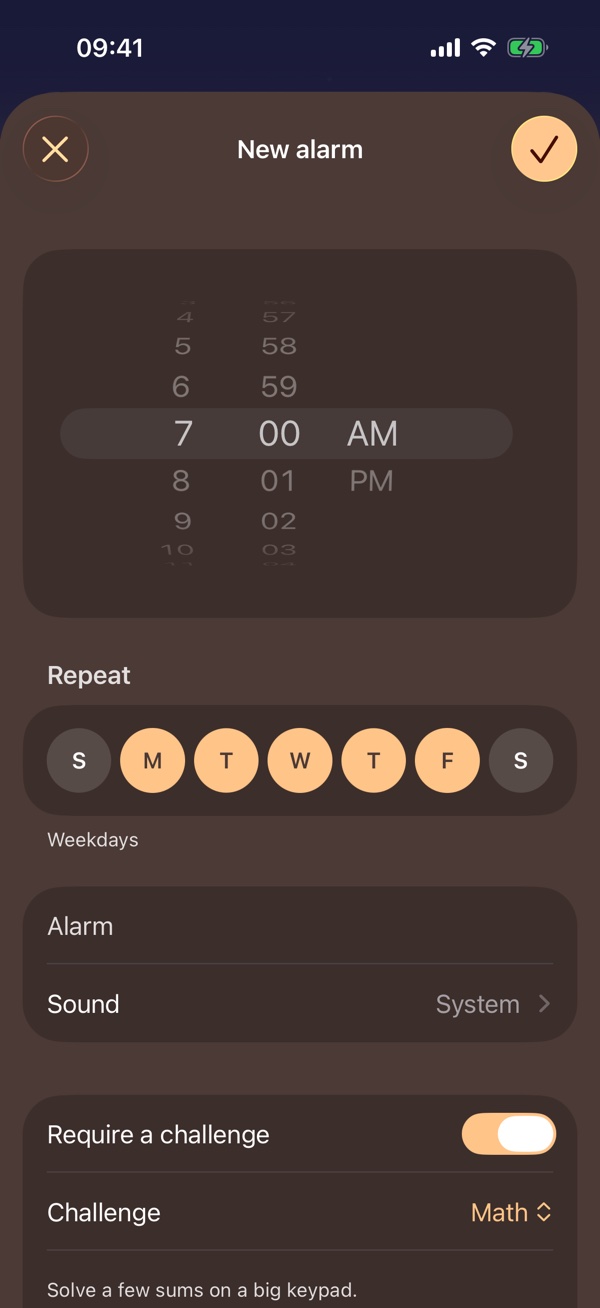
Tap the + button (Add alarm). In the editor you set:
- Time: choose the hour with the wheel.
- Repeat: Once, Every day, Weekdays, Weekends, or the exact days you want.
- Label: an optional name. It is also the title the alarm rings with.
- Sound: the iOS alarm sound or one of six 8-bit melodies. Tap the speaker to hear one. Arcade and Galicia are free; the other four are Premium, and choosing one opens the purchase screen if you do not have it.
- Require a challenge: new alarms start with it on, so the alarm does not stop until you complete one. Turn it off only for an ordinary alarm.
Tap the check mark at the top right (Save) to save, or the cross at the top left (Cancel) to close the editor without saving. Nothing is saved until you save.
Your alarms. In the list, the switch turns an alarm on or off, tapping an alarm opens it to edit, and swiping it left deletes it. Inside the editor there is also Delete alarm. Your next alarm sits on top, with how long is left.
Crea tu primera alarma
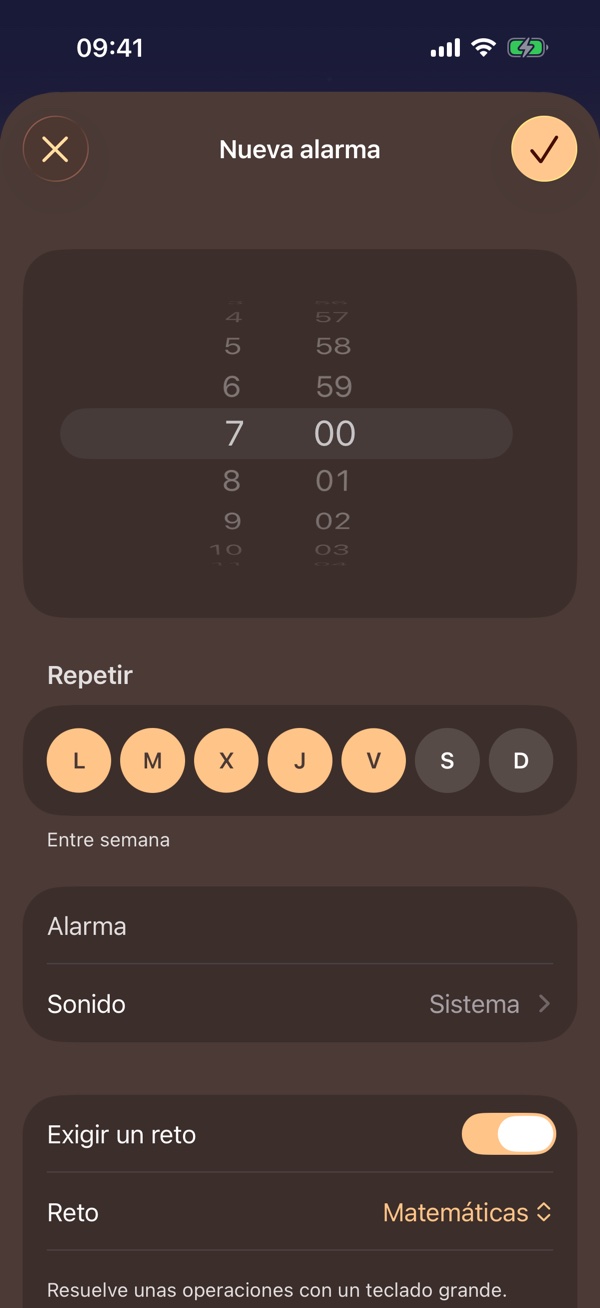
Toca el botón + (Añadir alarma). En el editor ajustas:
- Hora: elige la hora con la rueda.
- Repetir: Una vez, Todos los días, Entre semana, Fines de semana, o los días exactos que quieras.
- Etiqueta: un nombre opcional. Es también el título con el que suena la alarma.
- Sonido: el sonido de alarma de iOS o una de seis melodías de 8 bits. Toca el altavoz para oírla. Arcade y Galicia son gratis; las otras cuatro son Premium, y al elegir una se abre la pantalla de compra si no lo tienes.
- Exigir un reto: las alarmas nuevas empiezan con él activado, para que la alarma no pare hasta que completes uno. Desactívalo solo para una alarma normal.
Toca la marca de verificación de arriba a la derecha (Guardar) para guardar, o la cruz de arriba a la izquierda (Cancelar) para cerrar el editor sin guardar. No se guarda nada hasta que guardas.
Tus alarmas. En la lista, el interruptor activa o desactiva una alarma, al tocarla se abre para editarla y al deslizarla hacia la izquierda se borra. Dentro del editor también está Borrar alarma. Tu próxima alarma va arriba, con el tiempo que falta.
Pick a challenge
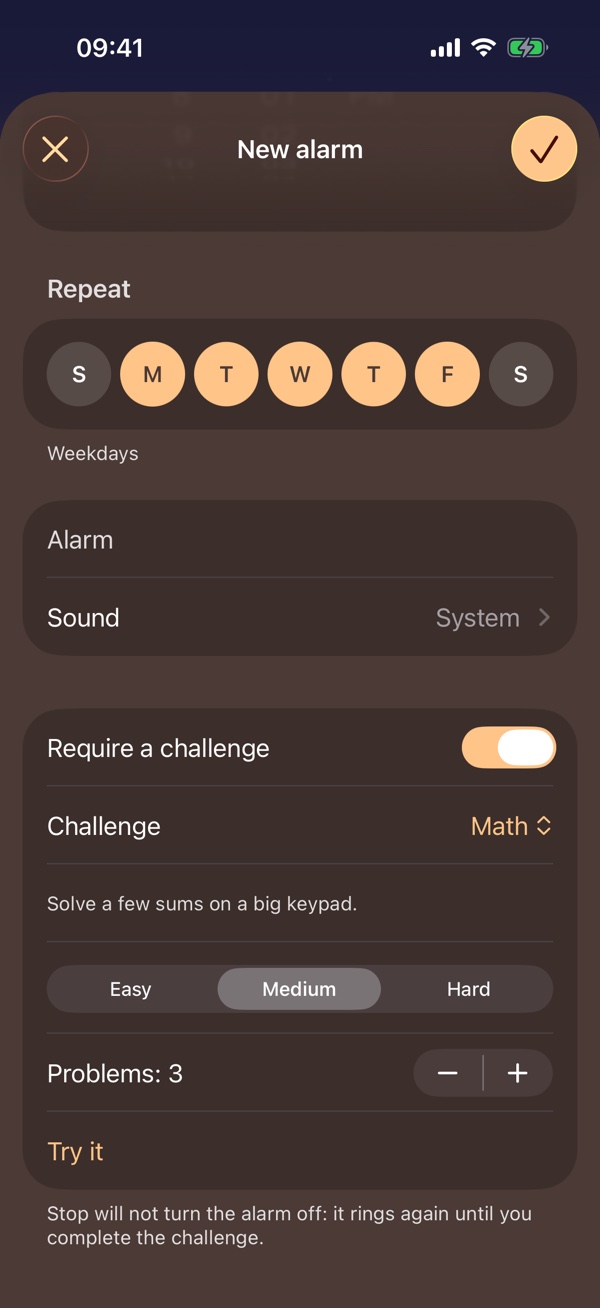
In Challenge choose how you will turn the alarm off. The list groups the challenges under Mind, Body and Away from bed, and a line under the row says what the one you picked asks you to do.
Mind
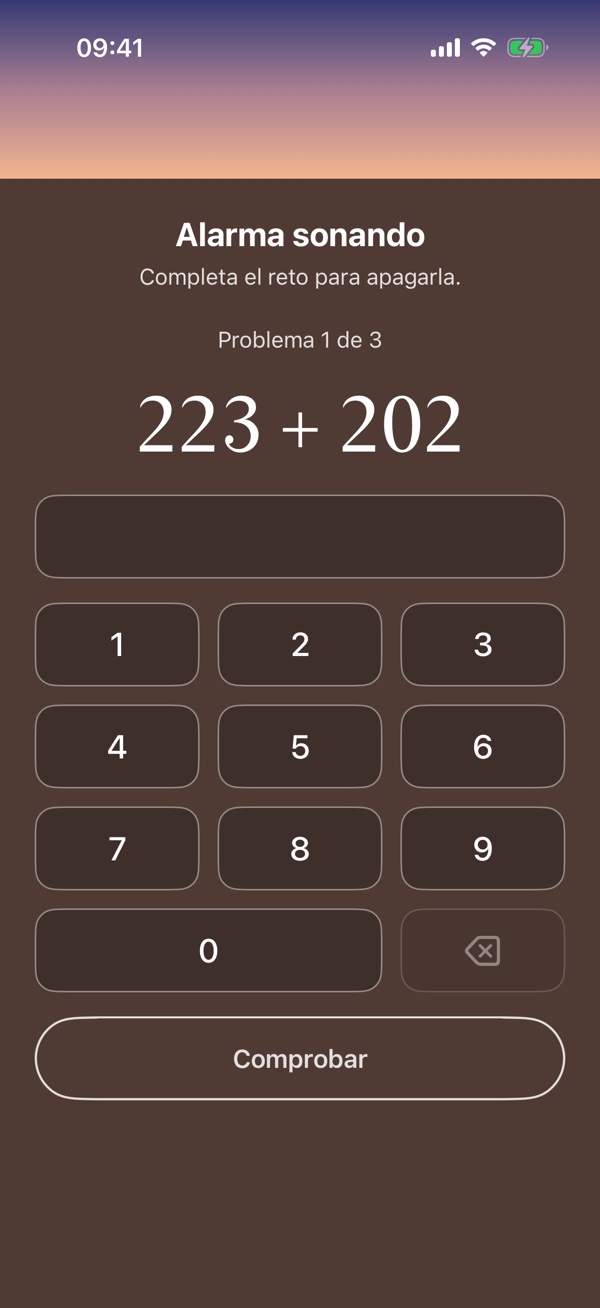
- Math (free). Choose the Difficulty (Easy, Medium, Hard) and how many problems, from 1 to 10. You answer on a keypad built into the app and tap Check; if the answer is wrong, Wakecraft tells you and you try again.
- Tap in order (free). Tap the numbers of a grid from lowest to highest. You choose the Grid size. By default the numbers skip values and the screen does not say which one comes next (Skip some numbers); turn that off to get consecutive numbers starting at 1.
- What it says (free). A word such as Up appears somewhere on the screen: tap the arrow the word names, not the one where it sits. You choose how many Hits in a row you need, and a mistake starts the count over, with no red and no shake.
- Pattern (premium). Trace a route over a grid of dots with your finger. In Copy mode the route stays in view while you trace it; in Remember mode it is shown for a few seconds and then hidden, and you can tap the board to see it again.
- Lights (premium). Watch four buttons light up and repeat the order. They differ by place and shape (circle, square, triangle and diamond), there is no sound and a mistake has no penalty: the sequence plays again. You choose how many lights, from 3 to 6.
- Order the word (premium). The letters of a word appear mixed up in tiles: tap them in order to spell it. You choose the number of Letters and how many Words in a row. A wrong word gives the tiles back and places the next letter for you, so you are never stuck. The words come in the language of the app, and German uses the English ones for now.
Body
- Shake (free). Shake your phone until the gauge fills. You set how many shakes.
Away from bed
- Scan a code (premium). Tap Scan a code and point the camera at any QR code or barcode, then put it away from your bed: the bathroom, the kitchen. To turn the alarm off you scan the same one. There is a flashlight button for dark rooms, and iOS asks for the camera permission at that moment. The alarm cannot be saved without a registered code.
- Walk steps (premium, iPhone only). Choose how many steps, from 10 to 200 (30 by default). Wakecraft counts the steps your iPhone detects while you walk, with the phone in your hand or pocket, and the alarm turns off when you reach them. iOS asks for access to Motion & Fitness when you choose this challenge, and it needs Fitness Tracking on in Settings › Privacy & Security › Motion & Fitness.
Premium challenges are marked (Premium) in the list. If you do not have Premium, choosing one opens the purchase screen (see Premium and Settings).
An alarm can always be turned off: if a challenge cannot run (no camera or pedometer, a permission denied), the alarm asks for math instead. With VoiceOver or Switch Control on, Pattern and Lights, which need the screen, are replaced by math, and the editor says so.
Try it. At the end of the challenge settings, Try it opens the challenge as a test: no alarm rings, none is turned off and it does not count for your streak.
Elige un reto
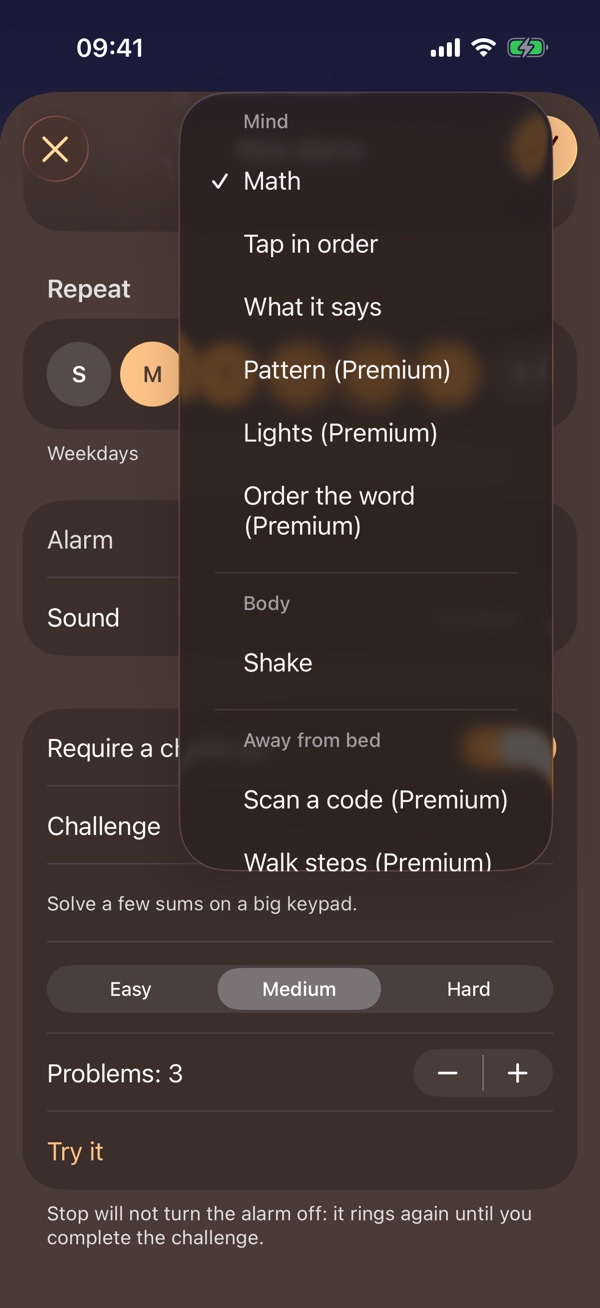
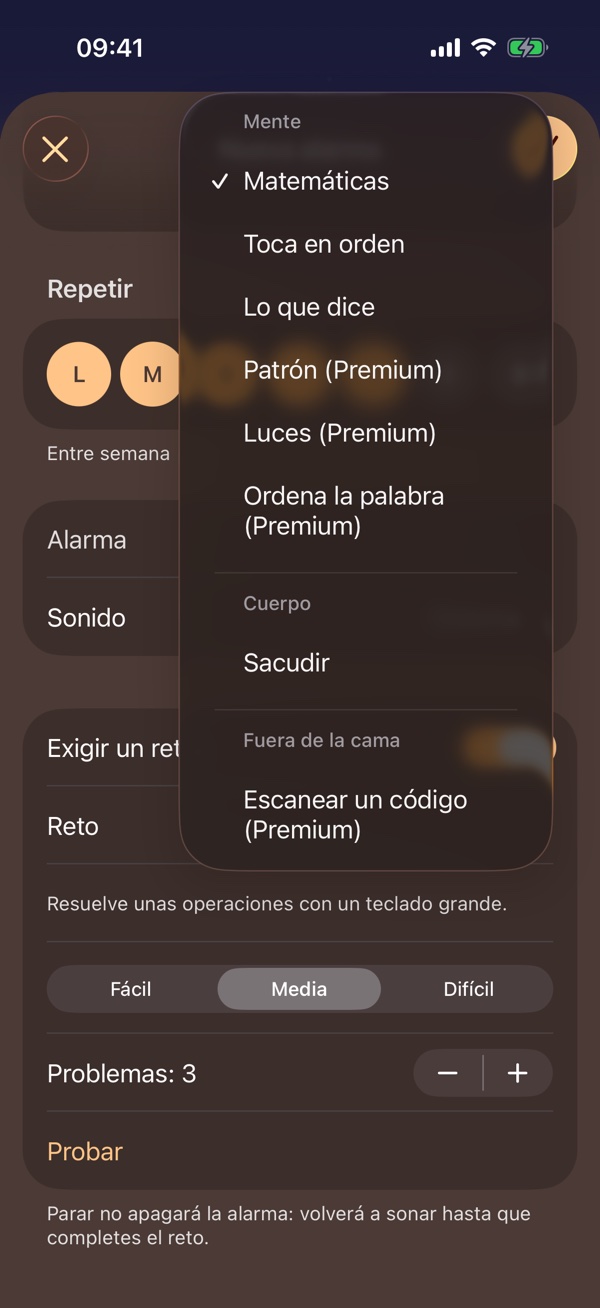
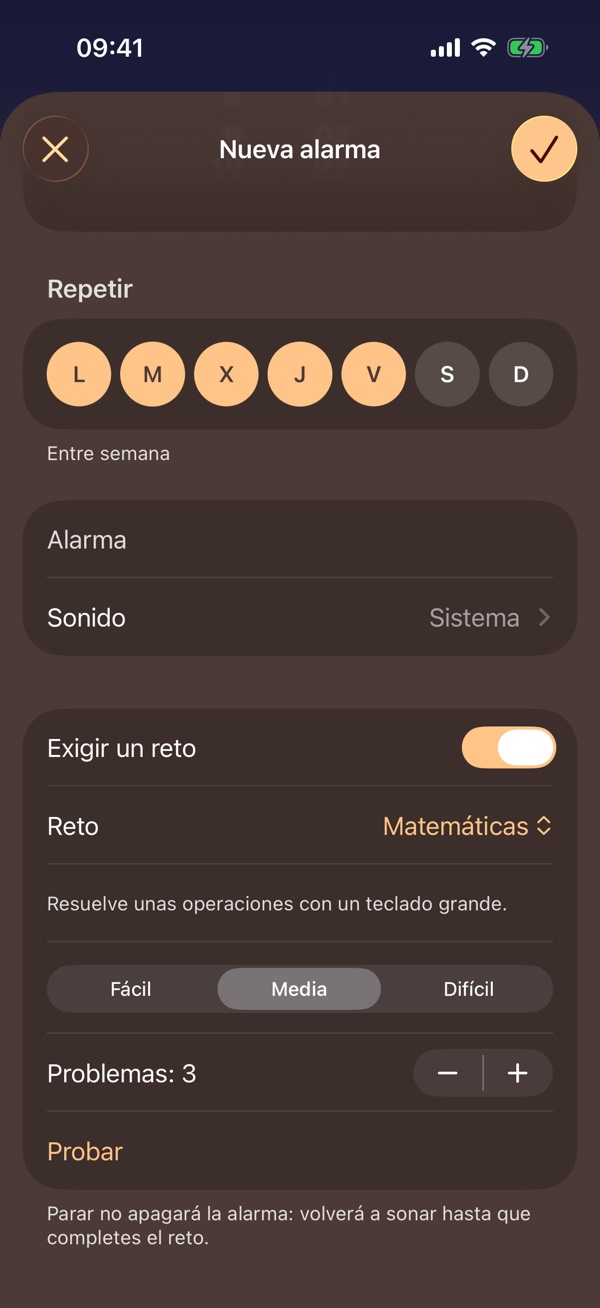
En Reto elige cómo vas a apagar la alarma. La lista agrupa los retos en Mente, Cuerpo y Fuera de la cama, y una línea bajo la fila dice qué te pide el que has elegido.
Mente
- Matemáticas (gratis). Elige la Dificultad (Fácil, Media, Difícil) y cuántos problemas, de 1 a 10. Respondes con un teclado propio de la app y tocas Comprobar; si la respuesta es incorrecta, Wakecraft te lo dice y vuelves a intentarlo.
- Toca en orden (gratis). Toca los números de una rejilla de menor a mayor. Eliges el Tamaño de la rejilla. Por defecto los números se saltan valores y la pantalla no dice cuál toca (Con números salteados); desactívalo para tener números consecutivos desde el 1.
- Lo que dice (gratis). Una palabra como Arriba aparece en otro sitio de la pantalla: toca la flecha que nombra la palabra, no la de donde está. Eliges cuántos Aciertos seguidos hacen falta, y un error empieza la cuenta de nuevo, sin rojo ni sacudida.
- Patrón (premium). Traza con el dedo un recorrido sobre una rejilla de puntos. En el modo Copiar el recorrido se ve mientras lo trazas; en el modo Recordar se enseña unos segundos y luego se oculta, y puedes tocar el tablero para volver a verlo.
- Luces (premium). Mira cómo se encienden cuatro botones y repite el orden. Se distinguen por su sitio y su forma (círculo, cuadrado, triángulo y rombo), no hay sonido y equivocarse no penaliza: la secuencia se vuelve a ver. Eliges cuántas luces, de 3 a 6.
- Ordena la palabra (premium). Las letras de una palabra salen mezcladas en fichas: tócalas en orden para formarla. Eliges el número de Letras y cuántas Palabras seguidas. Una palabra mal devuelve las fichas y coloca la siguiente letra por ti, así que nunca te quedas atascado. Las palabras salen en el idioma de la app, y el alemán usa por ahora las inglesas.
Cuerpo
- Sacudir (gratis). Sacude el móvil hasta que se llene el indicador. Tú decides cuántas sacudidas.
Fuera de la cama
- Escanear un código (premium). Toca Escanear un código y apunta la cámara a cualquier QR o código de barras; después ponlo lejos de la cama: el baño, la cocina. Para apagar la alarma escaneas el mismo. Hay un botón de linterna para habitaciones a oscuras, y iOS te pide el permiso de la cámara en ese momento. La alarma no se puede guardar sin un código registrado.
- Dar pasos (premium, solo iPhone). Elige cuántos pasos, de 10 a 200 (30 por defecto). Wakecraft cuenta los pasos que detecta el iPhone al andar, con el móvil en la mano o en el bolsillo, y la alarma se apaga al llegar. iOS pide acceso a Movimiento y forma física al elegir este reto, y necesita Seguimiento de actividad física activado en Ajustes › Privacidad y seguridad › Movimiento y forma física.
Los retos premium llevan (Premium) en la lista. Si no tienes Premium, al elegir uno se abre la pantalla de compra (mira Premium y ajustes).
Una alarma siempre se puede apagar: si un reto no puede ejecutarse (sin cámara ni podómetro, con un permiso denegado), la alarma pide matemáticas. Con VoiceOver o Control por botón activos, Patrón y Luces, que necesitan la pantalla, se sustituyen por matemáticas, y el editor lo dice.
Probar. Al final de los ajustes del reto, Probar abre el reto como una prueba: no suena ninguna alarma, no se apaga ninguna y no cuenta para tu racha.
When the alarm rings
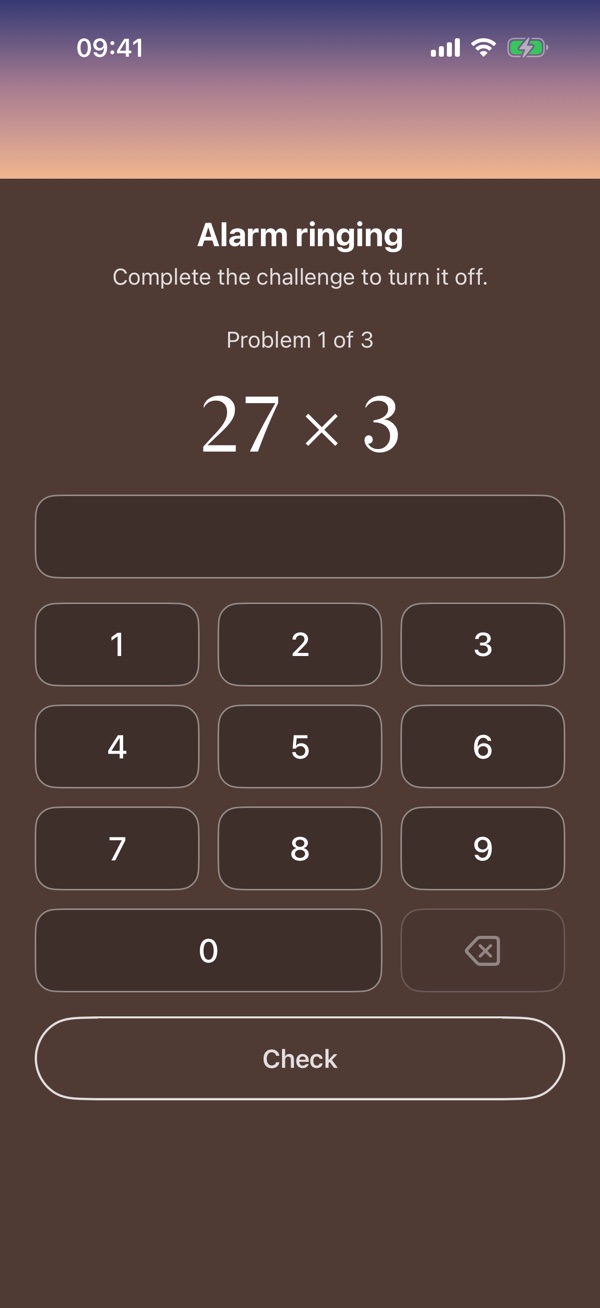
It rings like any iPhone alarm, even with the app closed or the phone on silent. You will see two buttons:
- Do challenge opens Wakecraft on your challenge. Complete it and the alarm turns off.
- Stop silences the alarm but does not turn it off: it rings again a few seconds later, and Wakecraft also schedules follow-up alarms in the following minutes, until you complete the challenge.
Cuando suena la alarma
Suena como cualquier alarma del iPhone, incluso con la app cerrada o el móvil en silencio. Verás dos botones:
- Hacer reto abre Wakecraft en tu reto. Complétalo y la alarma se apaga.
- Parar silencia la alarma pero no la apaga: vuelve a sonar unos segundos después, y Wakecraft programa además alarmas de seguimiento en los minutos siguientes, hasta que completes el reto.
If you cannot do the challenge
A few minutes after the alarm starts ringing, an I can't do the challenge button appears: the emergency exit. It swaps your challenge for five medium math problems, which need no object, sensor or permission. Solve them and the alarm turns off.
It is logged, and that day does not count as waking up on the first try. You can go back to your challenge at any time with Back to the challenge.
Si no puedes hacer el reto
Unos minutos después de que empiece a sonar aparece el botón No puedo hacer el reto: la salida de emergencia. Cambia tu reto por cinco problemas de matemáticas de dificultad media, que no necesitan ningún objeto, sensor ni permiso. Resuélvelos y la alarma se apaga.
Queda registrado, y ese día no cuenta como despertar a la primera. Puedes volver a tu reto en cualquier momento con Volver al reto.
Routines
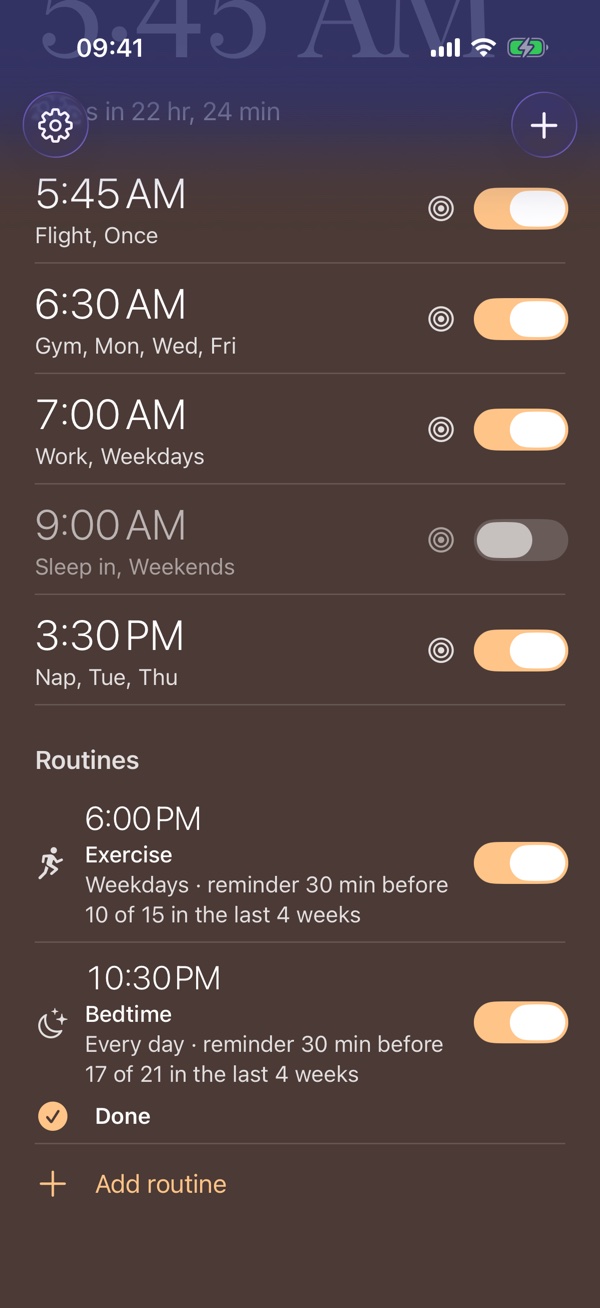
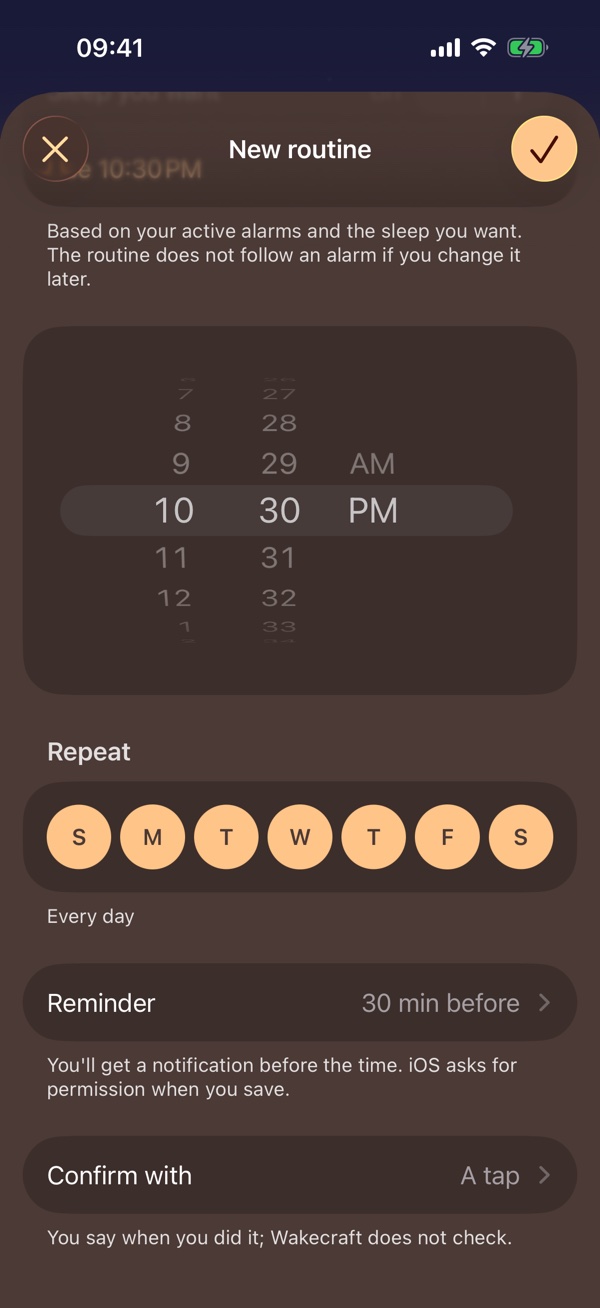
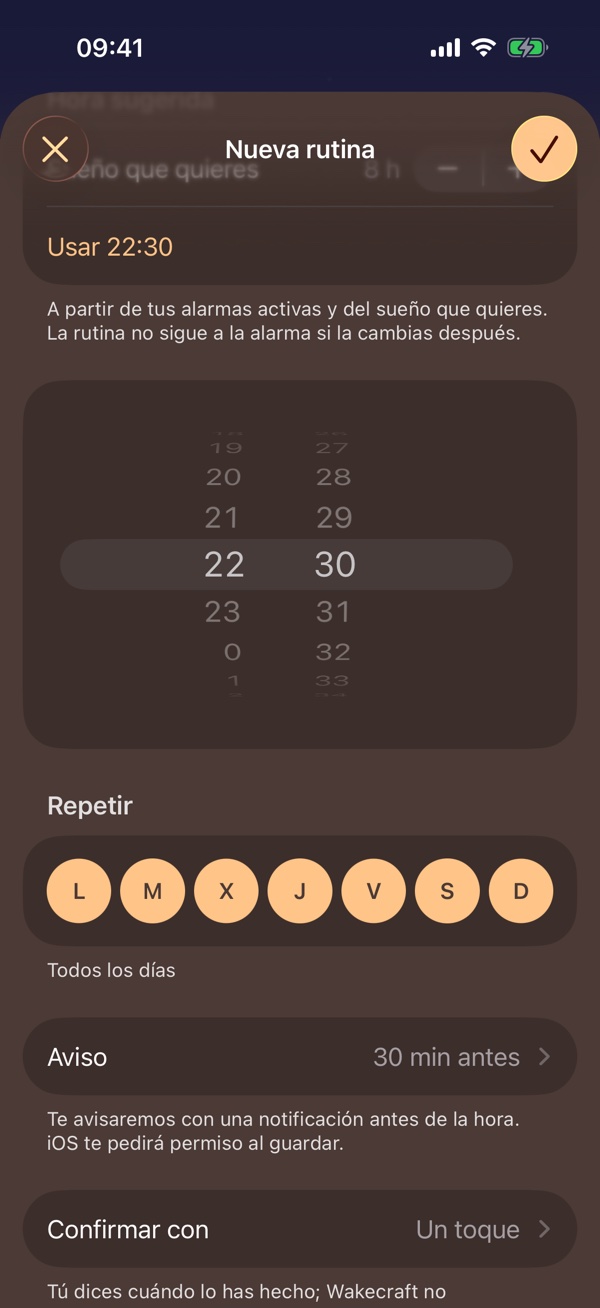
Under your alarms, Routines is a place for habits that have a time: a reminder reaches you and you tap to say you did it. Wakecraft does not check it, does not track your sleep and does not follow your activity. There are two kinds, Bedtime and Exercise: tap Add routine and pick one. In the editor you set:
- Sleep you want (bedtime): Wakecraft works out a bedtime from your active alarms and the sleep you want, and the Use button takes the time it suggests. The routine does not follow an alarm if you change it later.
- Time and Repeat, as in an alarm.
- Reminder: how long before the time you get a notification, or At the time. It is a normal notification, so it respects silent mode and Focus. iOS asks for permission when you save; without it you can still mark the routine in the app.
- Confirm with: A tap, QR code (one you register, for example one stuck up at the gym) or, for exercise, Steps (the steps you walk after the routine's time).
In the list, each routine shows its time, its days and how many of the last 4 weeks you kept it, never worded as a failure. When it is due, tap I'm in bed or I did it: in the list, on the notification itself, in the Today widget (see Widgets) or with Siri (see Siri and Shortcuts). With a QR code or steps, the button opens the reader or checks your steps, and if the camera or the step counter cannot be used, a tap gets you out. To remove a routine, swipe it left and confirm Delete routine; you lose its day count.
Your first bedtime routine is free. More routines, the exercise routine and confirming with a QR code or with steps are Premium, and a routine you already have keeps working if Premium ends.
Rutinas
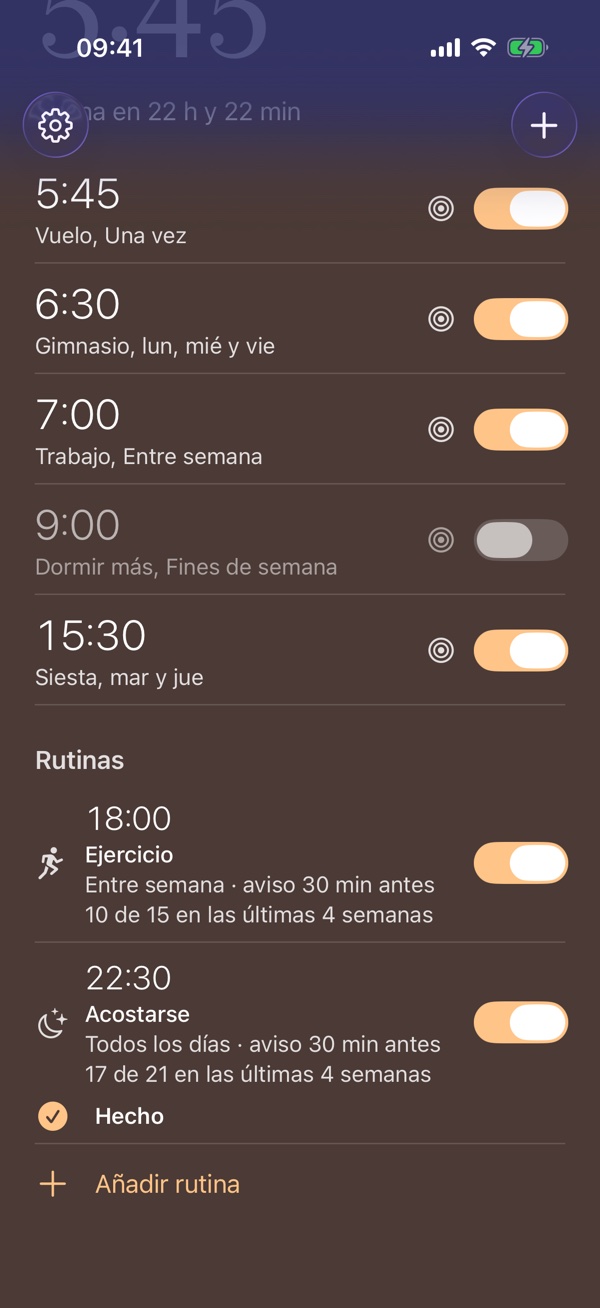
Bajo tus alarmas, Rutinas es un sitio para los hábitos que tienen hora: te llega un aviso y tocas para decir que lo has hecho. Wakecraft no lo comprueba, no sigue tu sueño y no sigue tu actividad. Hay dos tipos, Acostarse y Ejercicio: toca Añadir rutina y elige uno. En el editor ajustas:
- Sueño que quieres (acostarse): Wakecraft calcula una hora de acostarte a partir de tus alarmas activas y del sueño que quieres, y el botón Usar toma la hora que sugiere. La rutina no sigue a la alarma si la cambias después.
- Hora y Repetir, como en una alarma.
- Aviso: cuánto antes de la hora te llega una notificación, o A la hora. Es una notificación normal, así que respeta el modo silencio y los modos de concentración. iOS pide permiso al guardar; sin él puedes marcar la rutina desde la app.
- Confirmar con: Un toque, Código QR (uno que registras, por ejemplo uno pegado en el gimnasio) o, en ejercicio, Pasos (los pasos que das después de la hora de la rutina).
En la lista, cada rutina enseña su hora, sus días y cuántas de las últimas 4 semanas la has cumplido, nunca como un fallo. Cuando toca, pulsa Ya estoy en la cama o Ya lo hice: en la lista, en la propia notificación, en el widget Hoy (mira Widgets) o con Siri (mira Siri y Atajos). Con un código QR o con pasos, el botón abre el lector o comprueba tus pasos, y si no se puede usar la cámara o el contador de pasos, un toque te saca del apuro. Para quitar una rutina, deslízala hacia la izquierda y confirma Borrar rutina; pierdes su recuento de días.
Tu primera rutina de acostarse es gratis. Más rutinas, la de ejercicio y confirmar con un código QR o con pasos son Premium, y una rutina que ya tienes sigue funcionando si Premium termina.
Siri and Shortcuts
You can manage your alarms without opening the app. Say, or add to a shortcut:
- Ask: “When is my next alarm in Wakecraft?” (Next alarm in Shortcuts).
- Create: “Create an alarm in Wakecraft”. Siri asks for the time; by default the alarm asks for a math challenge, and you can choose shake or none (Create alarm).
- Turn off: “Turn off my next alarm in Wakecraft” (Turn off alarm).
- Turn on: “Turn on my next alarm in Wakecraft” (Turn on alarm).
- Mark a routine as done: “Mark my routine as done in Wakecraft” (Mark routine as done). It marks the routine that is due now, or the one you pick, so a personal automation, such as arriving at the gym, can do it for you.
Turning an alarm off needs your iPhone unlocked, and it is refused while an alarm with a challenge is ringing, or rang less than an hour and a half ago and its challenge is not done: Siri cannot skip the challenge for you. Complete it, or turn the alarm off in the app.
Siri y Atajos
Puedes gestionar tus alarmas sin abrir la app. Di, o añade a un atajo:
- Preguntar: «¿Cuándo suena mi próxima alarma en Wakecraft?» (Próxima alarma en Atajos).
- Crear: «Crea una alarma en Wakecraft». Siri te pide la hora; por defecto la alarma exige un reto de matemáticas, y puedes elegir sacudir o ninguno (Crear alarma).
- Desactivar: «Desactiva mi próxima alarma en Wakecraft» (Desactivar alarma).
- Activar: «Activa mi próxima alarma en Wakecraft» (Activar alarma).
- Marcar una rutina como hecha: «Marca mi rutina como hecha en Wakecraft» (Marcar rutina como hecha). Marca la rutina que toca ahora, o la que elijas, para que una automatización personal, como llegar al gimnasio, lo haga por ti.
Desactivar una alarma exige el iPhone desbloqueado, y se rechaza mientras suena una alarma con reto, o si sonó hace menos de hora y media y falta su reto: Siri no puede saltarse el reto por ti. Complétalo, o desactiva la alarma desde la app.
Widgets and Control Center
Touch and hold an empty spot on your Home Screen, tap + and search for Wakecraft. You will find:
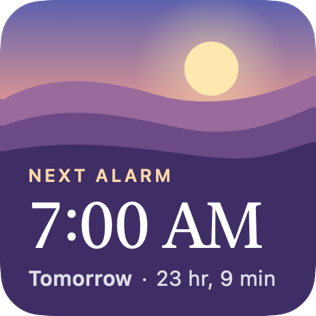
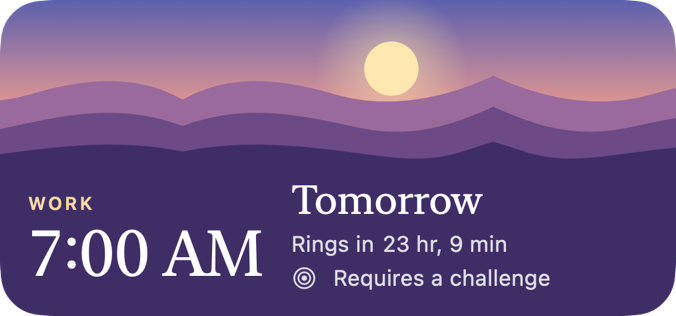
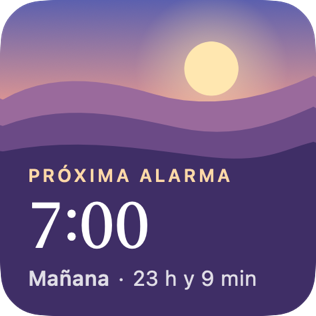
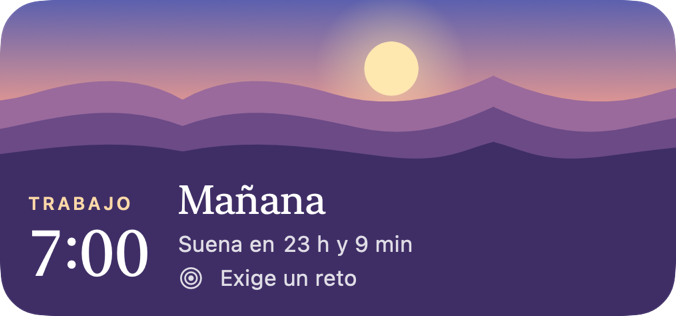
- Next alarm, small and medium: the time, the day and the name of your next alarm, over the sky of the hour. The medium one has a button to turn that alarm off or back on without opening the app.
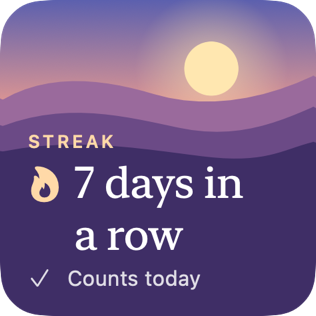
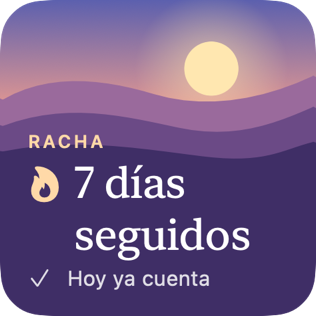
- Streak, small: how many days in a row you have woken up on the first try, and whether today already counts.
- On the Lock Screen (touch and hold it, then Customize): Next alarm and Streak, circular and rectangular.
- Today, small, medium and on the Lock Screen: your next alarm and your routines, with a button to mark the one that is due as done without opening the app.
Control Center: touch and hold an empty spot in Control Center, tap Add a Control and pick Alarm switch from Wakecraft. You choose which alarm it controls, it shows whether it is on, and it needs your iPhone unlocked to change it.
Widgets y Centro de control
Mantén pulsado un hueco de la pantalla de inicio, toca + y busca Wakecraft. Encontrarás:
- Próxima alarma, pequeño y mediano: la hora, el día y el nombre de tu próxima alarma, sobre el cielo de la hora. El mediano tiene un botón para desactivar esa alarma o volver a activarla sin abrir la app.
- Racha, pequeño: cuántos días seguidos has despertado a la primera, y si hoy ya cuenta.
- En la pantalla de bloqueo (mantenla pulsada y toca Personalizar): Próxima alarma y Racha, circular y rectangular.
- Hoy, pequeño, mediano y en la pantalla de bloqueo: tu próxima alarma y tus rutinas, con un botón para marcar como hecha la que toca sin abrir la app.
Centro de control: mantén pulsado un hueco del Centro de control, toca Añadir un control y elige Interruptor de alarma de Wakecraft. Tú eliges qué alarma controla, muestra si está activada, y necesita el iPhone desbloqueado para cambiarla.
Premium and Settings
Wakecraft is free with the Math and Shake challenges, Tap in order and What it says. Premium adds Scan a code and Walk steps, four of the six alarm melodies, the Pattern, Lights and Order the word challenges, more routines, the exercise routine and confirming a routine with a QR code or with steps. You can unlock it once, for life, or with a monthly or yearly subscription, and you pay through Apple.
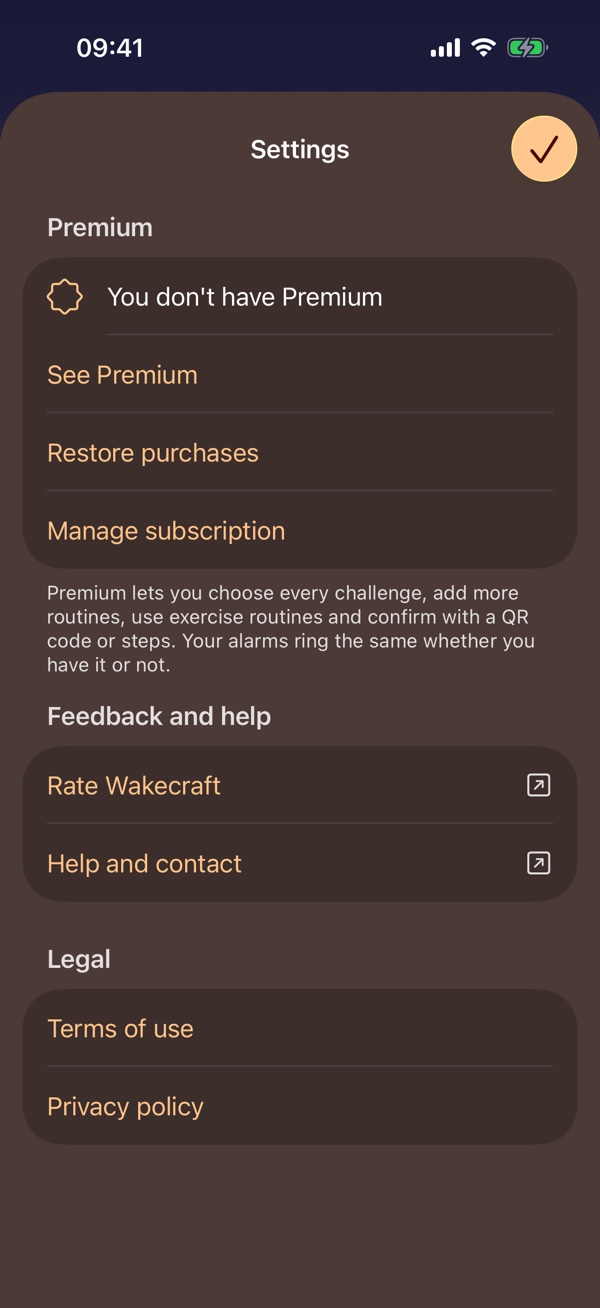
Tap the gear at the top left of the alarm list to open Settings:
- See whether Premium is on (Premium is on or You don't have Premium) and, if not, open See Premium to choose a plan.
- Restore purchases on a new iPhone or after reinstalling the app, with the same Apple Account.
- Manage subscription to change or cancel a monthly or yearly plan.
- Leave your opinion or ask for help: under Feedback and help, Rate Wakecraft opens the review screen of the App Store and Help and contact opens the support page. Wakecraft may also ask for a rating with the App Store's own prompt if you keep a streak of days, never while an alarm rings and never with VoiceOver or Switch Control on, so on those Rate Wakecraft is the way to do it.
- Read the Terms of use and the Privacy policy.
Premium never decides whether an alarm rings: your alarms ring the same with or without it. If Premium ends, the alarms with a premium challenge or melody switch to Math and the system sound when you open the app, and a routine you already have keeps working.
Premium y ajustes
Wakecraft es gratis con los retos de Matemáticas y Sacudir, Toca en orden y Lo que dice. Premium añade Escanear un código y Dar pasos, cuatro de las seis melodías de alarma, los retos Patrón, Luces y Ordena la palabra, más rutinas, la rutina de ejercicio y confirmar una rutina con un código QR o con pasos. Puedes desbloquearlo una sola vez, de por vida, o con una suscripción mensual o anual, y pagas a través de Apple.
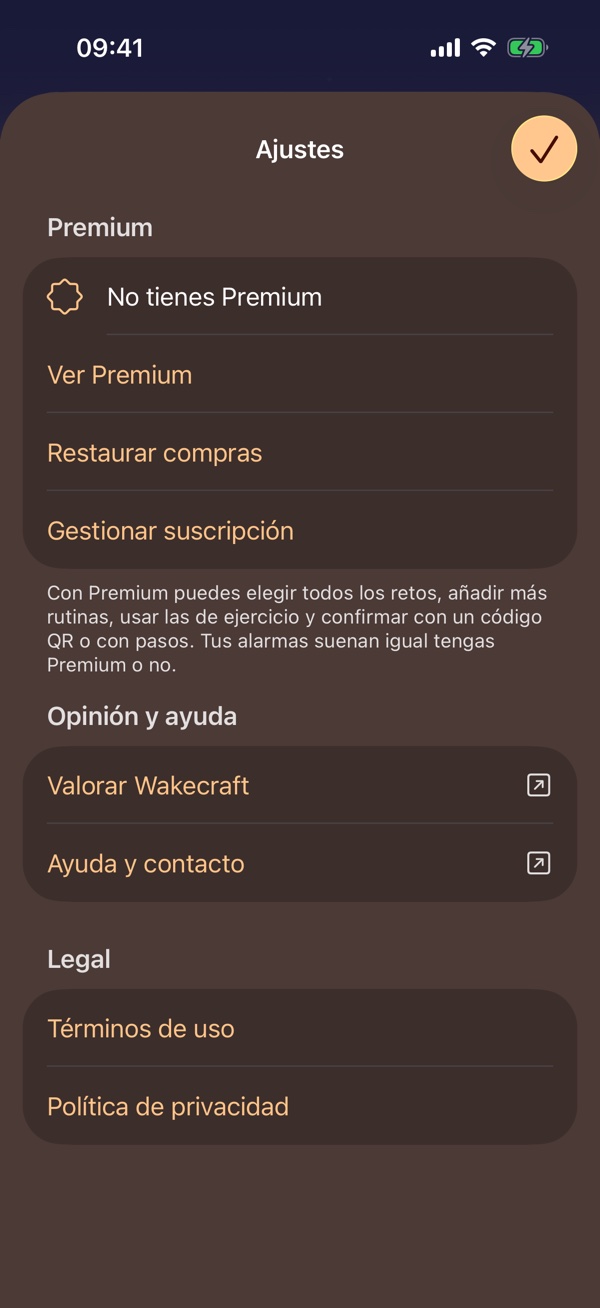
Toca el engranaje de arriba a la izquierda en la lista de alarmas para abrir Ajustes:
- Mira si Premium está activado (Premium activado o No tienes Premium) y, si no, abre Ver Premium para elegir un plan.
- Restaurar compras en un iPhone nuevo o tras reinstalar la app, con la misma cuenta de Apple.
- Gestionar suscripción para cambiar o cancelar un plan mensual o anual.
- Deja tu opinión o pide ayuda: en Opinión y ayuda, Valorar Wakecraft abre la pantalla de reseña de la App Store y Ayuda y contacto abre la página de soporte. Wakecraft también puede pedirte una valoración con el aviso de la propia App Store si llevas una racha de días, nunca mientras suena una alarma ni con VoiceOver o Control por botón activos, así que con ellos Valorar Wakecraft es la vía para hacerlo.
- Lee los Términos de uso y la Política de privacidad.
Premium nunca decide si una alarma suena: tus alarmas suenan igual con él o sin él. Si Premium termina, las alarmas con un reto o una melodía premium pasan a Matemáticas y al sonido del sistema cuando abres la app, y una rutina que ya tienes sigue funcionando.
Tips for a reliable alarm
- Keep the volume up and check in Settings › Wakecraft that alarms are allowed.
- After updating iOS, restart your iPhone and try an alarm a few minutes away.
- Put the QR code where you have to stand up to reach it, but where you can get to it safely.
- For something you cannot miss, such as a flight, keep a second alarm as a backup.
- The challenges also fit at the larger accessibility text sizes, and VoiceOver announces your progress in them.
- Before you rely on a challenge, open it with Try it in the alarm editor: it runs as a test, without ringing or turning off anything.
Consejos para una alarma fiable
- Mantén el volumen alto y comprueba en Ajustes › Wakecraft que las alarmas están permitidas.
- Después de actualizar iOS, reinicia el iPhone y prueba con una alarma de unos minutos.
- Pon el código QR donde tengas que levantarte para llegar, pero donde puedas llegar con seguridad.
- Para algo que no puedes perderte, como un vuelo, deja una segunda alarma de respaldo.
- Los retos también caben con los tamaños de texto de accesibilidad más grandes, y VoiceOver te anuncia tu avance en ellos.
- Antes de fiarte de un reto, ábrelo con Probar en el editor de alarmas: se ejecuta como una prueba, sin sonar ni apagar nada.
Something is not working as described here?
¿Algo no funciona como se cuenta aquí?
Get supportIr a soporte